
When an estimate is initially marked as Approved, Beam automatically generates three project records:
- Prime Contract
- Budget
- Schedule
This saves time by creating your project documents directly from the approved estimate.
What happens if I edit the estimate after it's been approved?
If you make changes to an estimate after it has already been approved, those updates are not automatically reflected in your existing Prime Contract.
For example, you may:
- Edit pricing or quantities
- Add or remove line items or cost codes
- Update the scope of work
If any of the above happens, then you mark the revised estimate as Approved again, you'll need to manually sync the updated estimate to your Prime Contract. Important note: this can only be done prior to creating your first invoice.
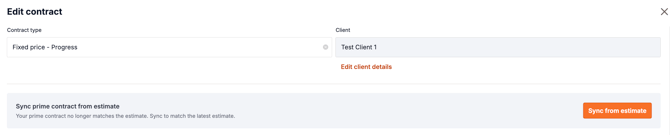
How do I sync my Prime Contract?
- Navigate to the Prime Contract tab.
- Click Edit.
- Click Sync from Estimate to update your Prime Contract with the latest approved estimate.
Note: If your approved estimate contains changes that haven't been synced, you'll see a Sync from Estimate button on this page. If there are no unsynced changes, the Sync from Estimate button will not appear.
Does this apply to Change Orders?
No. Approved Change Orders follow a different workflow.
When creating a Change Order, you'll have the option to choose whether you'd like the applicable accounting codes and costs to be added to the prime contract upon approval. If selected, Beam will incorporate those changes as part of the Change Order process, and no manual contract sync is required.

Best Practices
After revising an estimate that has already been approved, always review your Prime Contract to confirm it reflects the latest version. If the Sync from Estimate button is available, sync the contract before sharing or executing it.