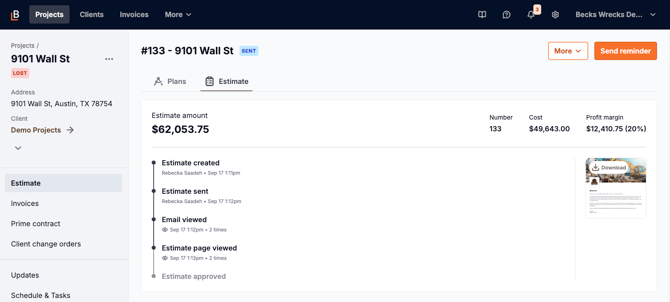
When an estimate gets rejected, whether your client rejected it in their portal or someone on your team marked it that way, Beam moves it out of the main estimate view. The project drops to Lost, the estimate shows up under Previous estimates with a REJECTED status, and the activity timeline goes away with it.
If that happened by mistake, or the client came back around, you can reset it.
Note: Resetting brings the estimate and its activity timeline back, but it doesn't undo the project status. For what the timeline tracks in the first place, see How do I see if my client viewed or approved my estimate?
Reset the estimate
- From the Projects page, open the project.
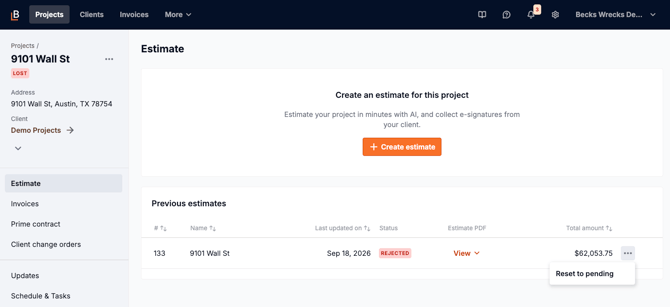
- Select Estimate in the left sidebar. Your rejected estimate is listed under Previous estimates.
- Click the three dots at the far right of the estimate row.
- Select Reset to pending.
What happens next
The estimate goes back to a SENT status and the full activity timeline is visible again, with every view and timestamp it had before. Nothing is lost.
One thing to watch: the project itself stays in a Lost status. Beam automates the status change when an estimate is rejected, but it doesn't automate the reversal. If you want the project back in Estimating, you can change it manually within the project settings.