
This guide walks you through two quick tasks in Gmail — unblocking the sender address and creating a filter — so that messages from Beam never land in your spam folder.
 Part 1: Unblock the Sender
If you have previously blocked this address (or Gmail auto-blocked it), follow these steps.
-
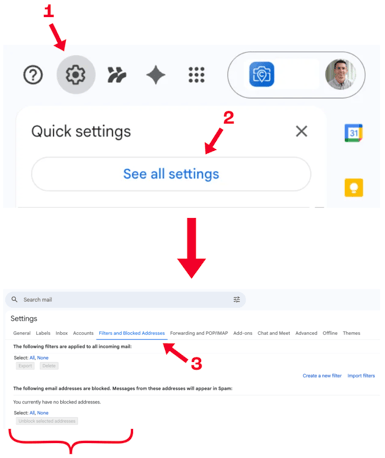
In Gmail, click the gear icon ⚙️
-
Select the
See all settingsbutton from the dropdown -
Navigate to the Filters and Blocked Addresses tab at the top of the Settings page
- Review the Blocked Addresses section at the bottom, looking for no-reply@emails.trybeam.com
- Click unblock next to the address
If the address is not listed under Blocked Addresses, it has not been blocked and you can skip to the next part.
Part 2: Create a filter to never mark as spam
Creating a filter tells Gmail to always deliver these emails to your inbox, regardless of its spam detection. First off, make sure you're still in the Filters and Blocked Addresses section of Gmail (steps 1-3 above).
-
Click
Create a new filter -
In the From field, type in exactly no-reply@emails.trybeam.com (leave all other fields blank)
-
Click
Create filter -
Check the box for Never send it to Spam (and optionally check "Mark as important" to ensure it surfaces prominently)
- Click
Create filteragain to save
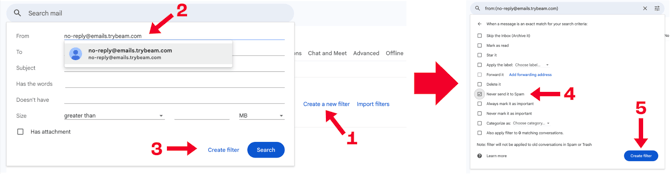
If you already have emails from this address in your Spam folder, check the box Also apply filter to matching conversations before saving — this will move existing messages to your inbox automatically.
Part 3: Verify it's working
After completing both parts, confirm the setup is correct.
-
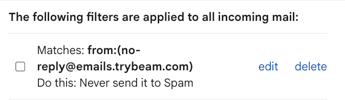 You should now see a new filter listed under the incoming mail section for no-reply@emails.trybeam.com with the action listed as "Never send it to Spam".
 - Send a test by triggering an email from Beam. It should arrive in your Primary inbox directly, not in Spam.
-
If a previous email was in Spam, open it and click Not Spam — Gmail will learn from this too.